Blindfold Lab

Help & guide

Solving the cube blindfolded – step by step

Blindfold Lab teaches you to solve a 3×3 cube blind with the Old Pochmann method: memorise, then solve from memory. On the virtual cube on screen or on a GAN smart cube via Bluetooth.

🎓 First blind solve in ~5 min📱 Phone, tablet, computer🔓 No account needed

Open Blindfold Lab

What is Blindfold Lab?

Three areas, one goal: solving the cube blindfolded.

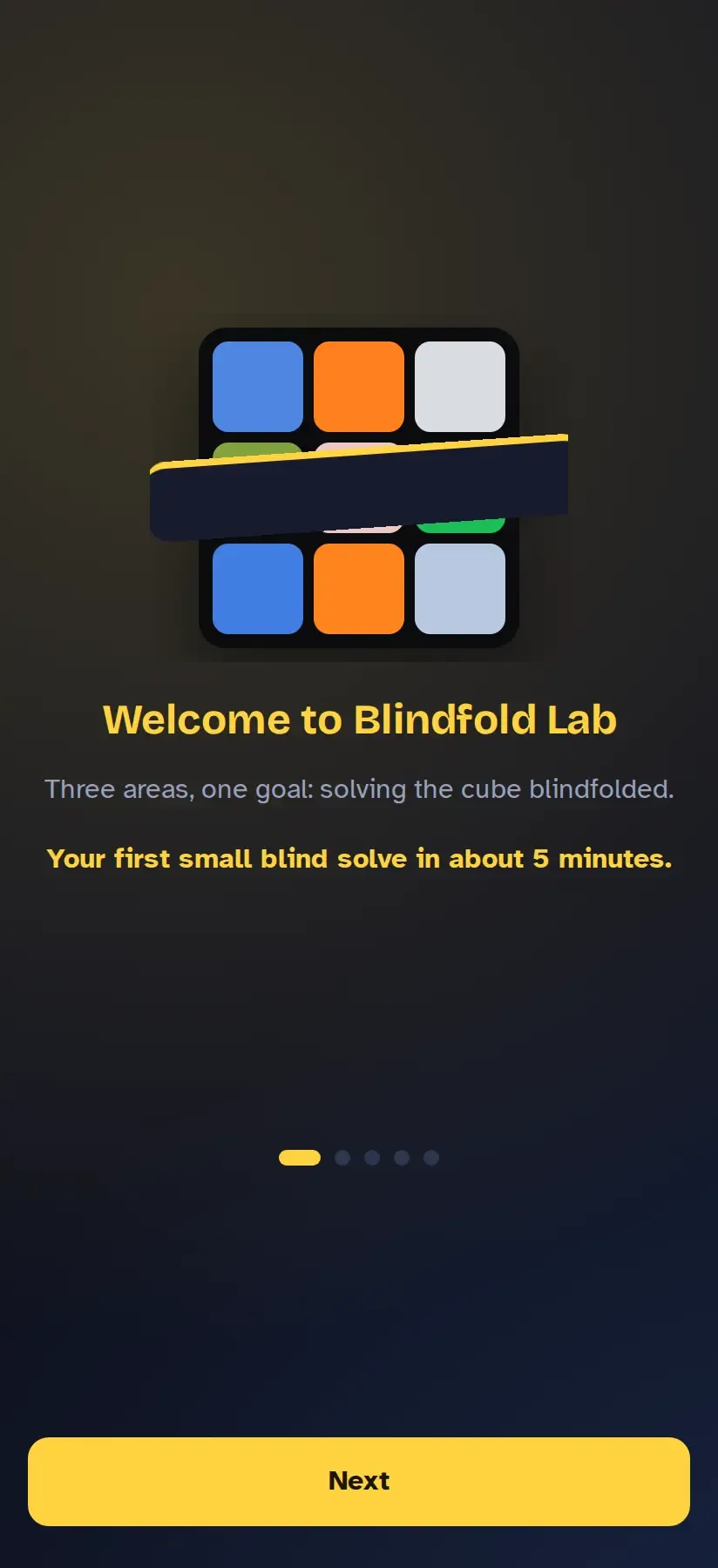
Welcome screen with the three areas Learn, Memorise and Solve blind
The welcome screen on first start
  • Learn – a guided course: your first small blind solve in about 5 minutes, whether you already solve cubes or not. Then on step by step to the whole cube.
  • Memorise – train letter pairs as images and memory routes, with flashcards and your own image lists.
  • Solve blind – blind and multiblind like in competition, with time, analysis and history.

Everything works on screen with the virtual cube. If you own a GAN smart cube, connect it via Bluetooth and turn the real cube.

Practising works without an account. With an account your progress, own image lists and routes are backed up and available on every device (see Account & sync).

The main screen

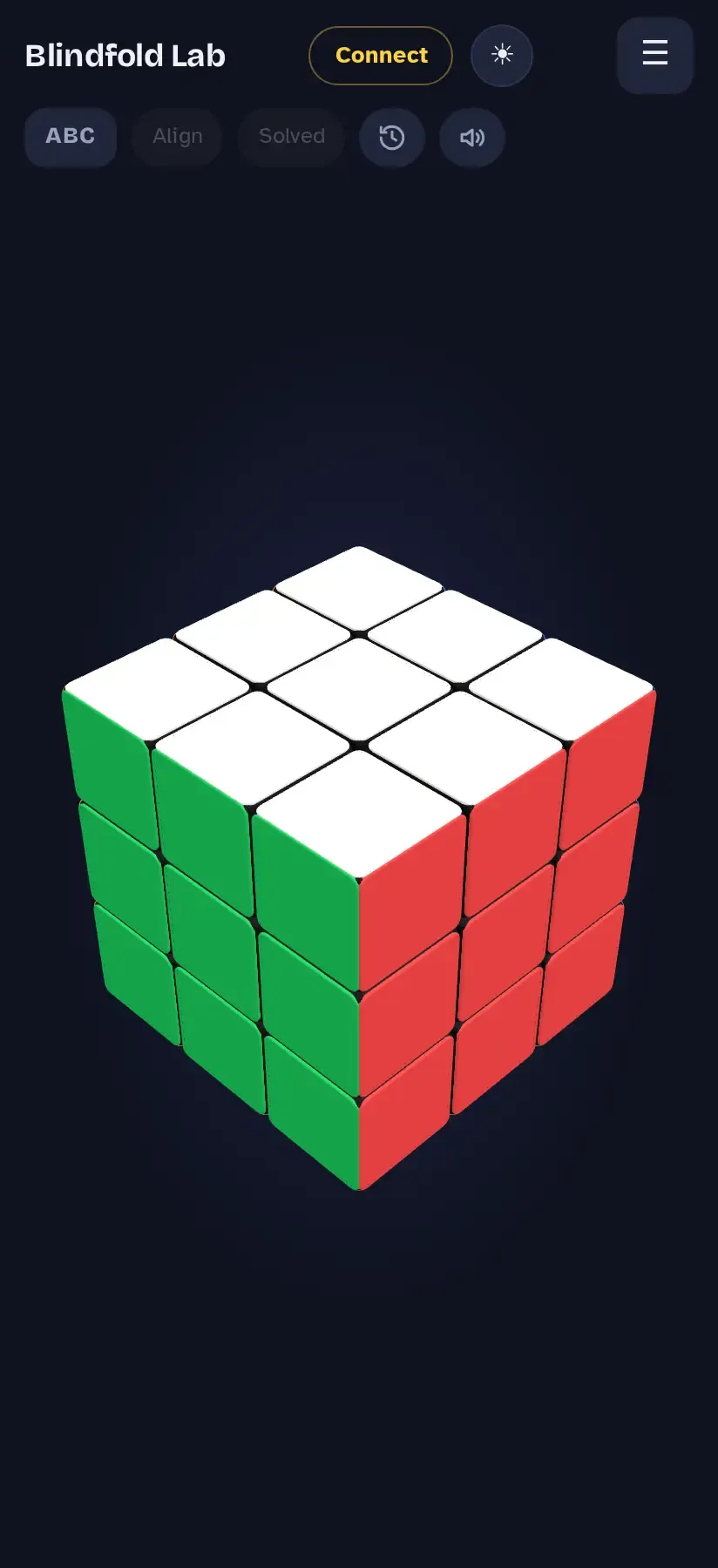
Main screen: title bar with Connect, light/dark switch and menu; below the buttons ABC, Align, Solved, history and sound; in the middle the 3D cube
Main screen with the virtual cube
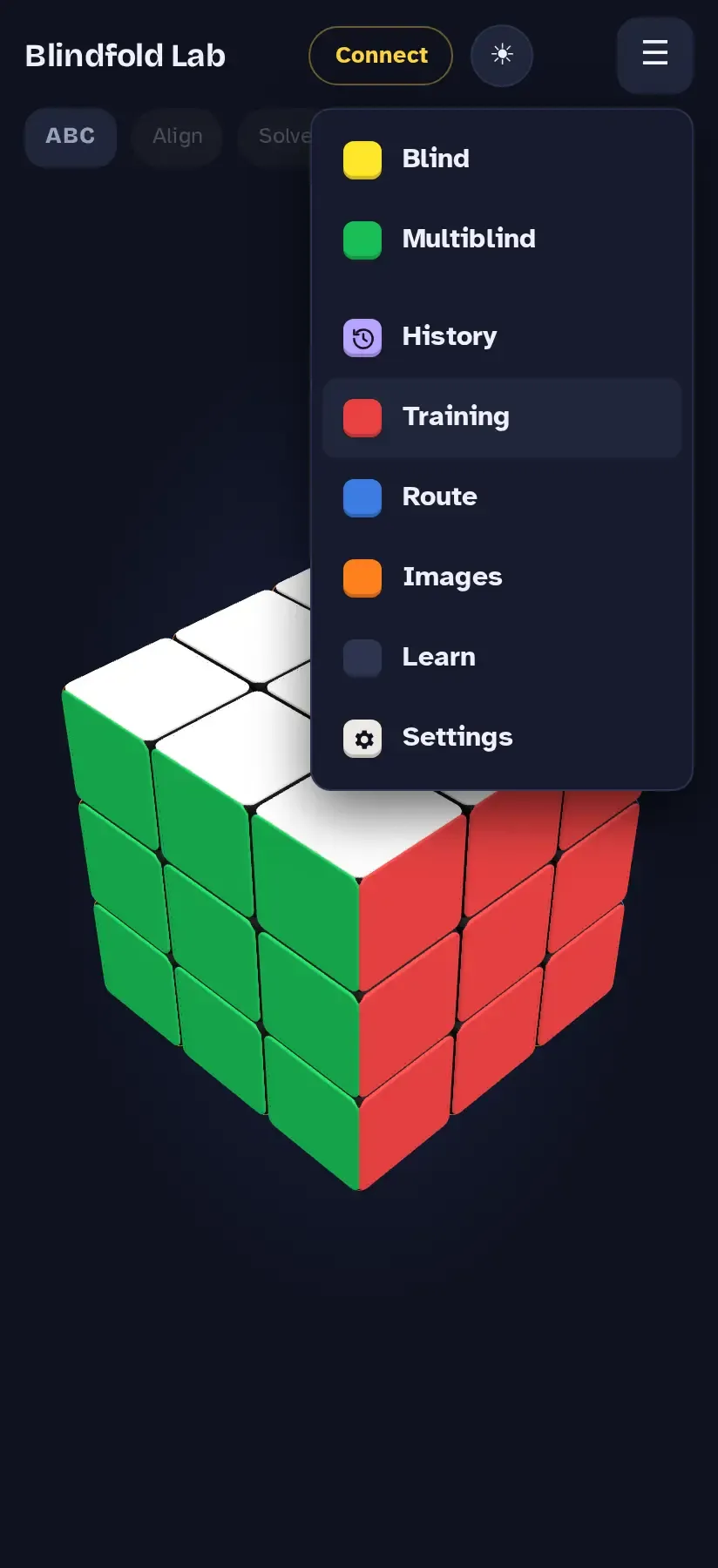
Opened menu with Blind, Multiblind, History, Training, Route, Images, Learn and Settings
The menu (☰)
ConnectPair a smart cube via Bluetooth.
☀ / ☾Switch between light and dark.
☰ MenuBlind, Multiblind, History, Training, Route, Images, Learn, Settings.
ABCLetters on the cube: off, slot (letter of the place) or target (where the sticker belongs).
AlignCube to base orientation – same as turning U four times (U4) on the smart cube.
SolvedMark the cube as solved – same as D4 on the smart cube.
🕘 ClockOpens the history.
🔊Sounds on or off.

On the virtual cube, swiping across the cube turns the layer under your finger (including middle layers); swiping beside it turns the view. Keyboard: R L U D F B, with Shift for counter-clockwise.

Quick start: your first blind solve

Menu → Learn. The course has two sections. In the first you memorise and type letters – the app turns for you. In the second you turn the swaps yourself.

1Open the course

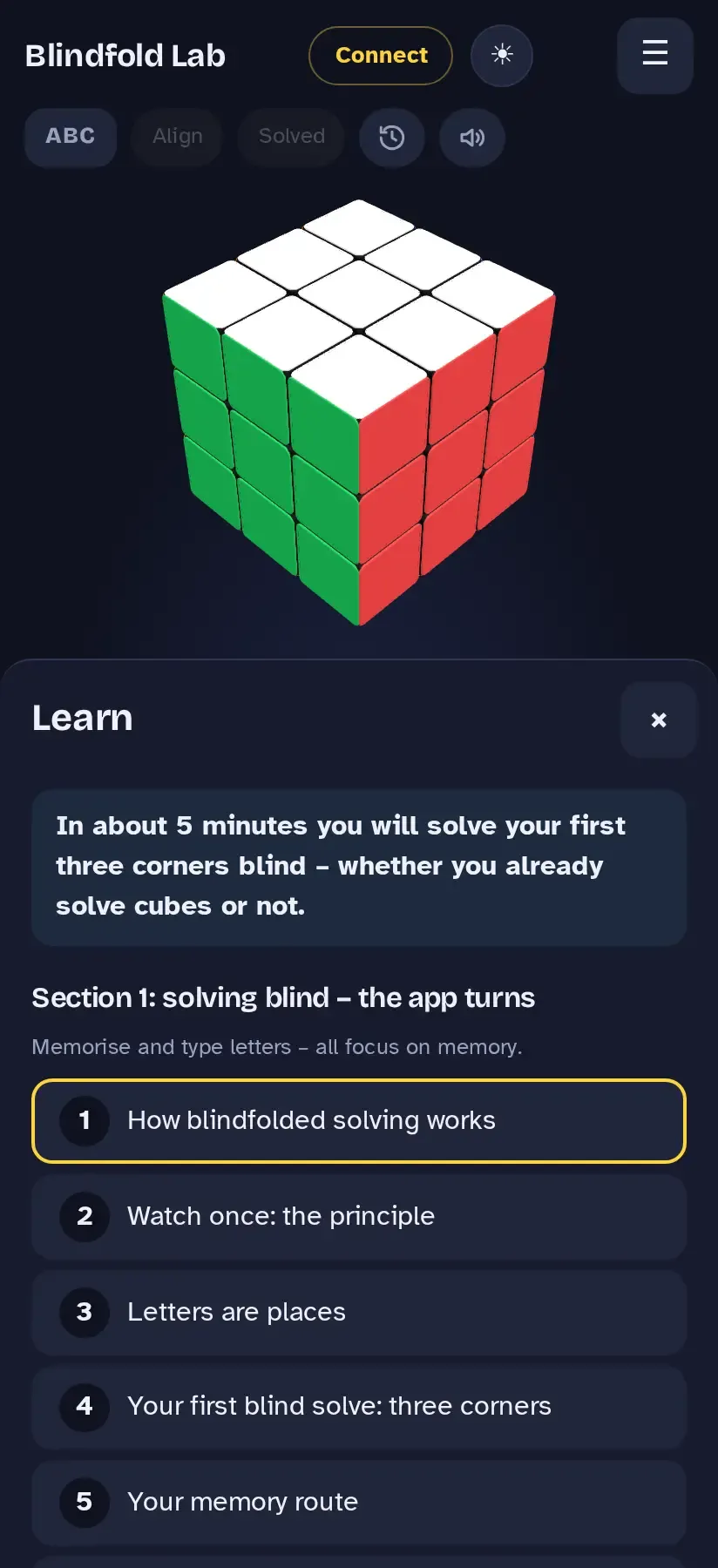
Learn panel with the lesson list of section 1: solving blind – the app turns
Lesson list, section 1

Section 1 – “Solving blind – the app turns” – starts with a short explanation and then goes straight to “Your first blind solve: three corners”.

A blind solve has two parts: you look at the cube and memorise it, then you solve it with your eyes closed. Old Pochmann swaps one piece, the buffer, again and again with the piece whose place it belongs to. What you memorise are letters: every sticker spot has one, corners and edges each have their own alphabet.

In about 5 minutes you solve your first three corners blind. The whole cube without turning takes a few hours, spread over a few days. Turning it yourself takes longer, usually a few weeks of practice.

2Read two letters, make a word

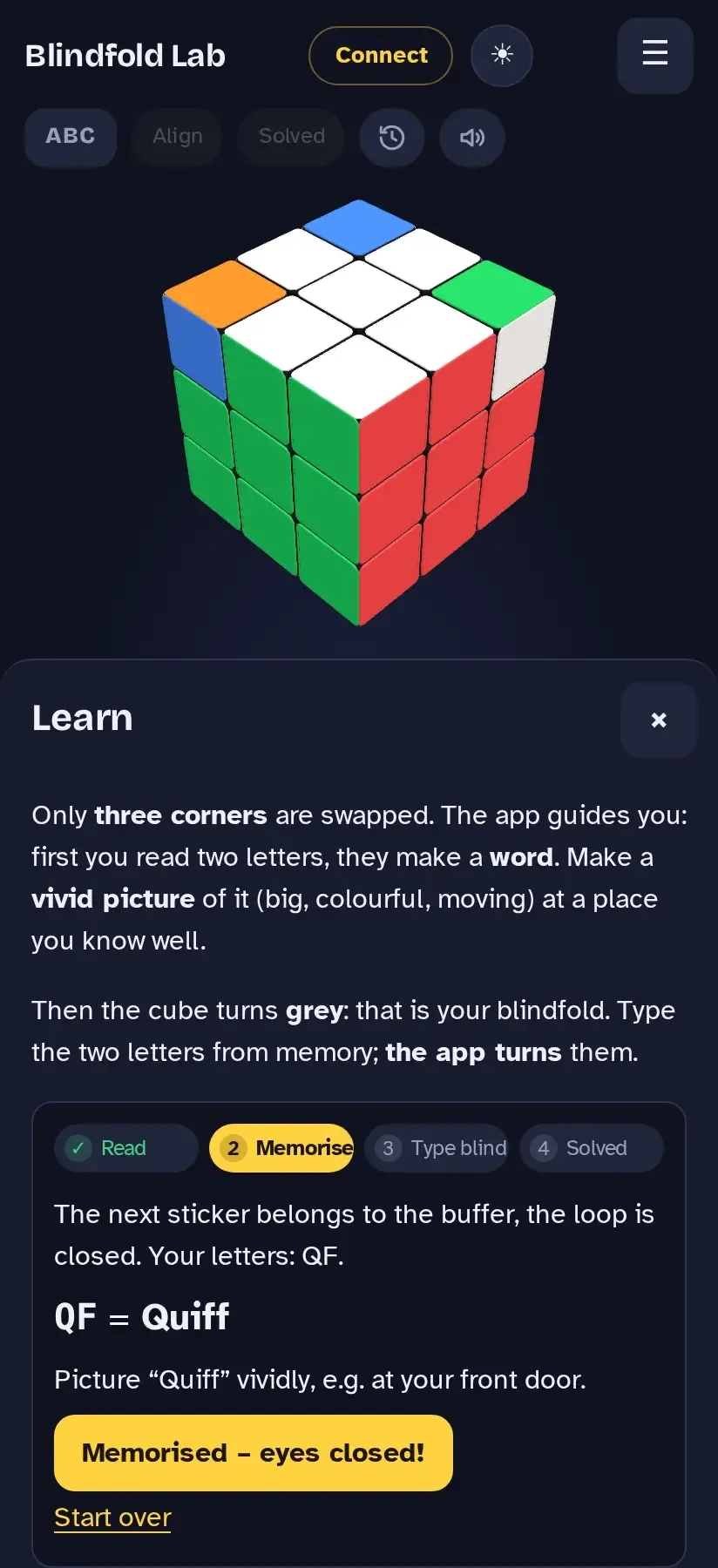
Lesson “Your first blind solve”: the two letters result in a word, with the tip to picture it vividly; button “Memorised – eyes closed!”
Two letters = one word

Only three corners are swapped. The app asks: where does the sticker on the buffer belong? Tap that letter, then the next one. The two letters make a word.

Make a vivid picture of it – big, colourful, moving – at a place you know well. Then tap Memorised – eyes closed!

3Type blind – the app turns

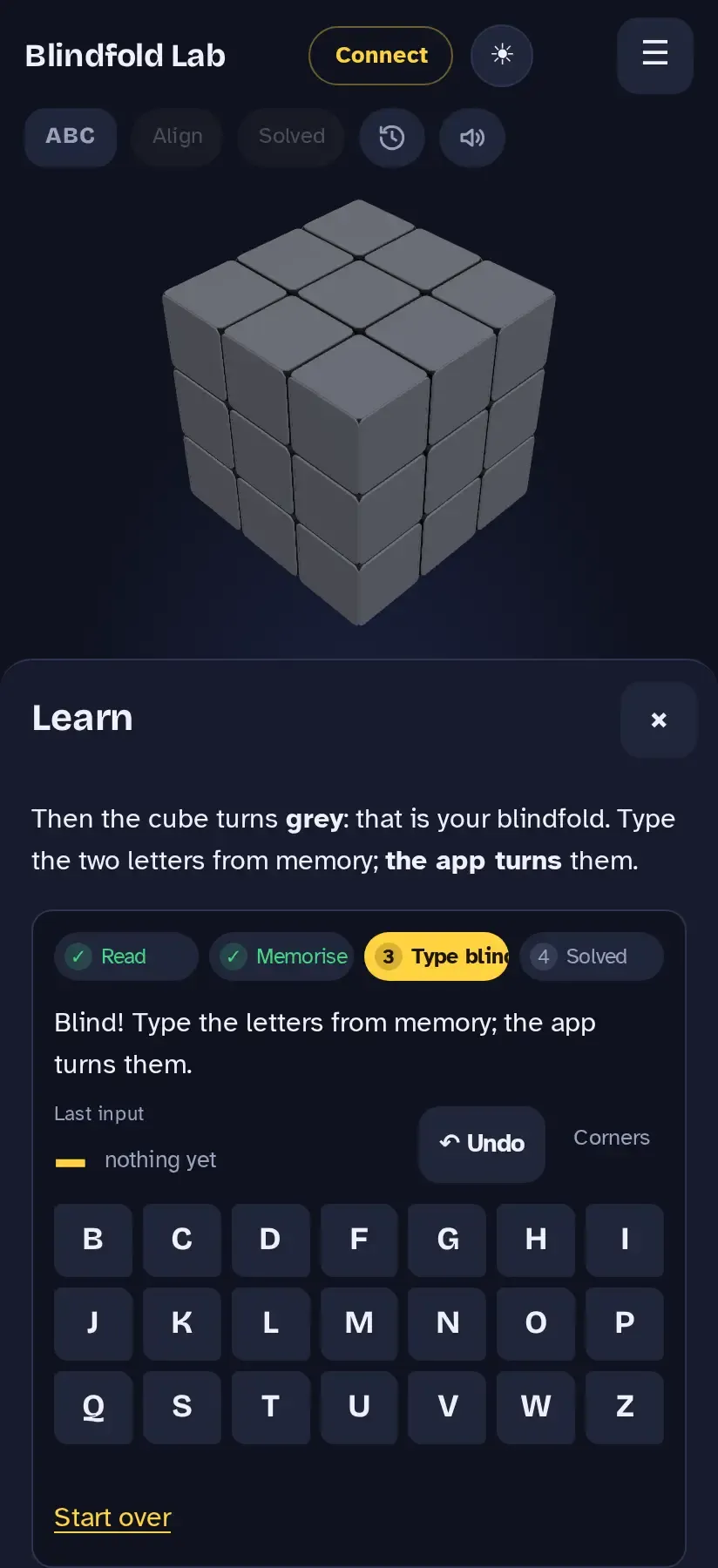
Grey cube and letter keyboard: “Blind! Type the letters from memory; the app turns them.”
The cube is grey: your blindfold
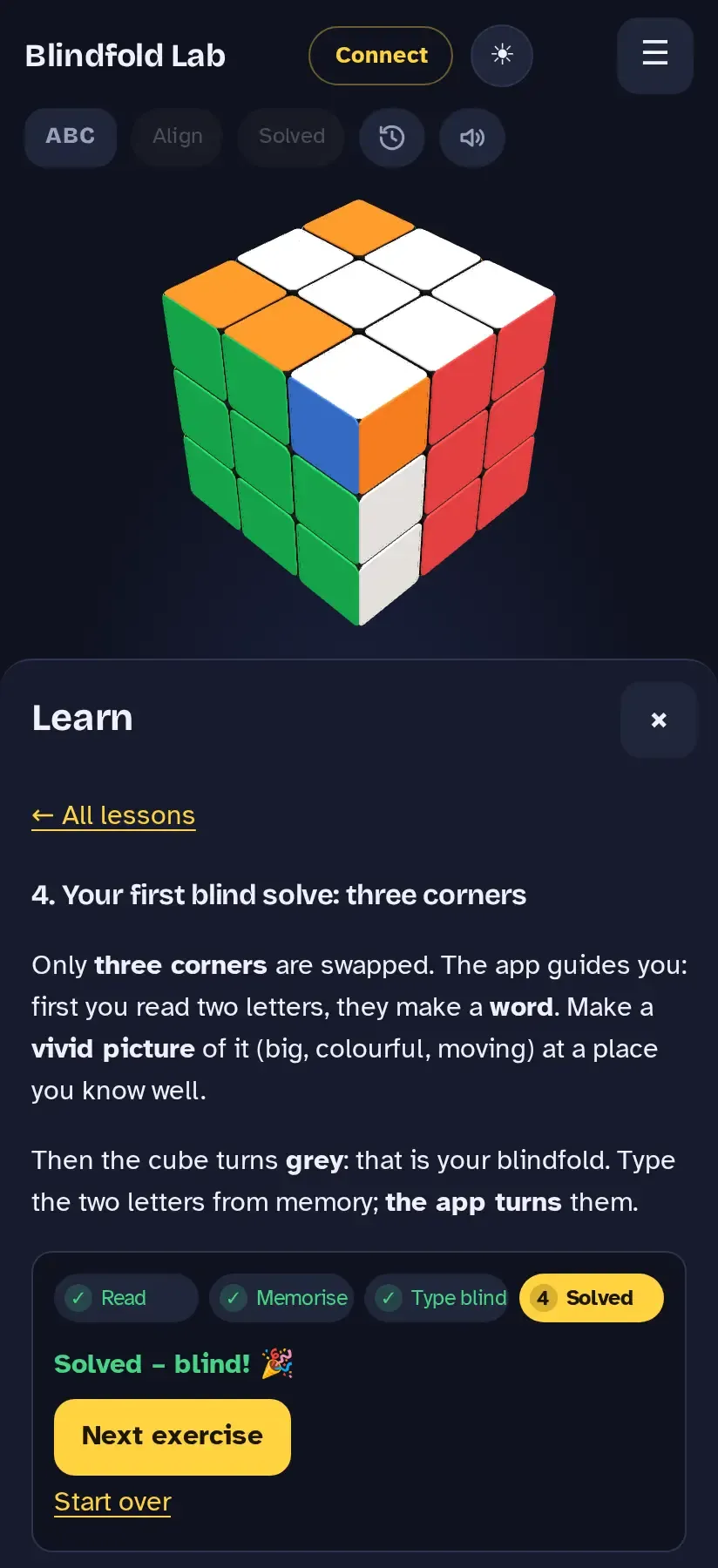
Solved cube with the message “Solved – blind!” and the button “Next exercise”
Solved – blind!

The cube turns grey. Type the two letters from memory; the app performs each swap for you. Only the last input can be undone (↶ Undo), as in a real blind solve.

Three successful solves and the lesson is done. After that the course continues: memory route, corner letters, memo for corners, twisted corners, all corners blind, then the same for edges, parity and the whole cube.

4Section 2: turning yourself

Once you can solve the whole cube by typing, section 2 – “Turning yourself – virtual or on a smart cube” – teaches the moves: the swap algorithms (Y perm for corners, T perm and J perms for edges), setup moves that bring a target onto the helper without moving the buffer, and then the same blind solves turned by hand. Per target: setup · swap · undo setup.

Once Old Pochmann is solid, section 3 – “M2 for edges” – follows: edges then go via the middle slice (buffer DF, swap with UB, just M2 instead of the T perm). You memorise the same way; the lesson switches M2 on for the whole app, and you can switch back any time in the settings.

Section 4 – “Commutators: Orozco & 3-Style” – solves two letters at once with a commutator [A, B] = A B A′ B′. Orozco uses one base formula T and one setup per letter – a pair xy is [setup x: T] [setup y: T′]; 3-Style has its own short commutator for every pair. Buffers fixed: corner UFR, edge UF. You memorise as before and type in pairs; a letter left over goes with a swap perm (button “do alone”).

Look up & practise is always there: the principle as a demonstration, the perms for your buffers with drill and best time, and the setups per letter as a table and flashcards.

Each lesson shows how often the task has to succeed (e.g. “1 of 3”). Your progress is saved; ← All lessons takes you back to the list.
Connecting a smart cube

Optional – everything also works on screen. Blindfold Lab connects to GAN smart cubes via Bluetooth.
1Where it works

DeviceHow
Android, Windows, macOS, ChromeOSIn the browser with Chrome or Edge (they support Web Bluetooth).
iPhone / iPadSafari has no Web Bluetooth – use the Bluefy browser.
Android / iOS appBluetooth is built in; connect directly in the app.

Firefox and Safari cannot connect a cube. The app then says: “This browser has no Web Bluetooth” – the simulation keeps running.

2Connect

  1. Turn on Bluetooth on your device.
  2. Tap Connect at the top.
  3. Give the cube a turn to wake it up. It then appears in the selection – tap your cube.
  4. Tapping the button again while connected offers Disconnect; you then continue on the virtual cube.

MAC address: GAN cubes need their MAC address for encryption. If the browser cannot read it automatically, the app asks for it (format AB:12:34:CD:56:EF). You can find it in the GAN app or e.g. with “nRF Connect”. It is stored in this browser.

If the connection drops, you continue in the simulation. During an attempt, or when the app was in the background, it reconnects on its own; otherwise a notice offers Reconnect.

3Align and mark as solved: U4 and D4

Two gestures on the cube save you from reaching for the screen:

  • U4 (turn U four times) – takes the current pose as base orientation (calibrates the gyro). Same as tapping Align.
  • D4 (turn D four times) – marks the cube as solved. Solve the real cube first, then turn D4 or tap Solved.

In a blind attempt, D4 ends the solve; in multiblind it switches to the next cube, on the last one it ends all solves. The gestures can be switched off in the settings.

During a blind attempt the cube on screen deliberately shows a different state than your smart cube. For the scramble colours only the screen counts – memorise from there. During memo, turning the smart cube only turns the view.

Training

Free practice with scramble, memo and execution – with or without a clock.

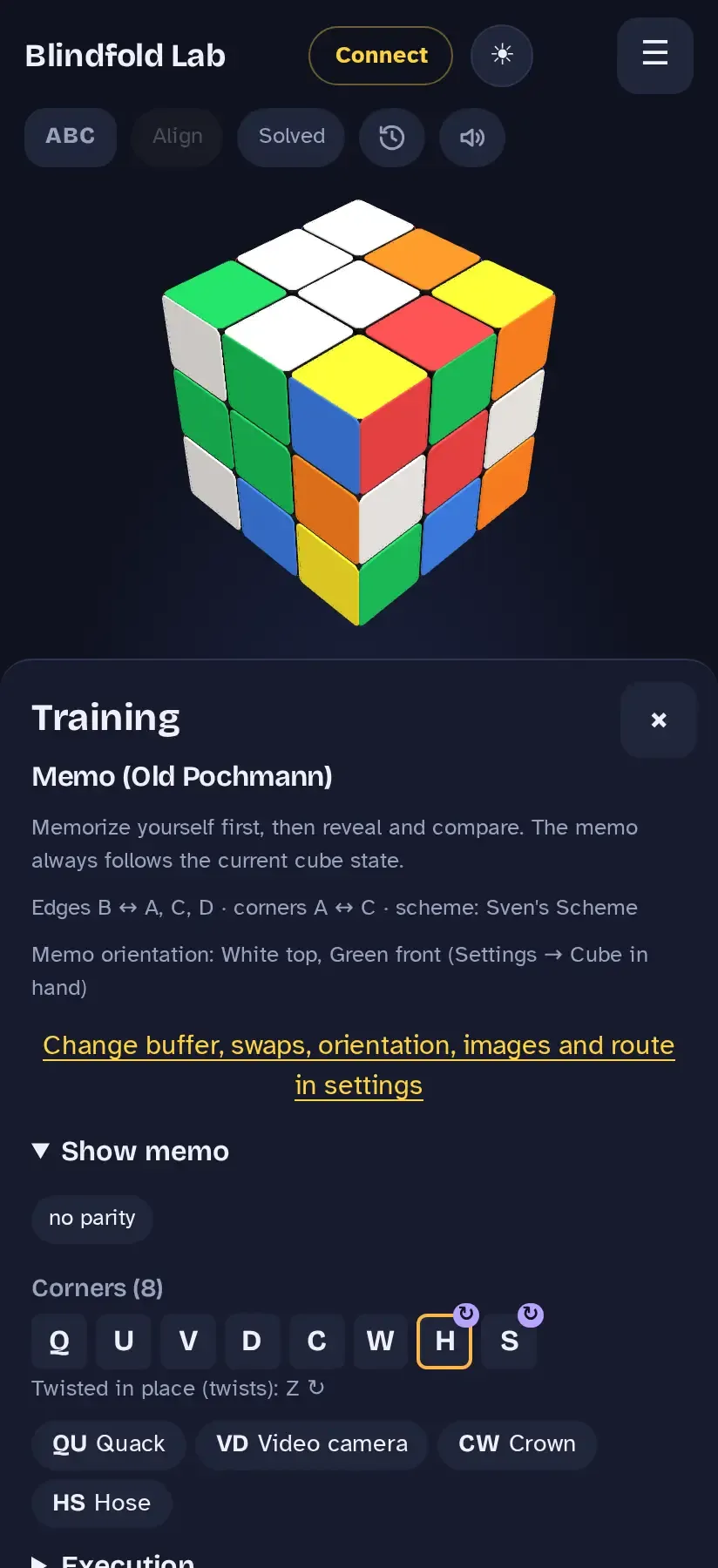
Training panel: memo revealed with corner letters, images and a parity note
Memo revealed for comparison
  • Scramble type: full (WCA-like), without parity, edges or corners only, short memo, flips, twists, parity only and more – good for practising single steps.
  • Apply scrambles the virtual cube. On a smart cube you follow the moves one by one; red moves mean “off track – turn back”.
  • Memo (Old Pochmann): memorise yourself first, then open Show memo and compare – letters, images on your route, parity and cycle breaks. Below it the execution per target.
  • Hide cube: turn the cube into your blind orientation, hide it and solve blind.

A training run counts once the scramble is done and the cube is solved again – then it lands in the history by itself.

Blind & multiblind

Like in competition: the cube sits under an upturned box. Lifting starts the clock; solved counts the time, otherwise DNF.

1Scramble and uncover

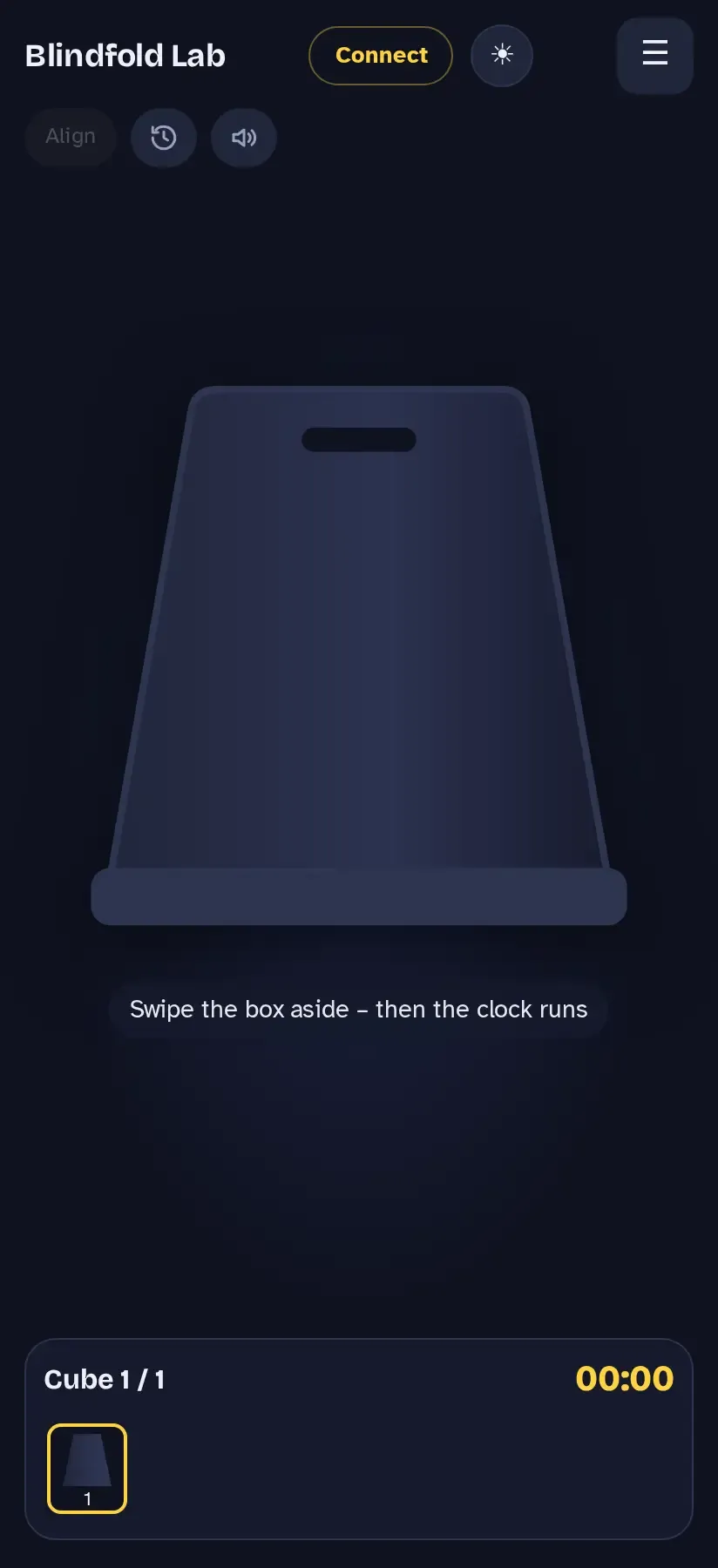
The cube is covered by a box; hint: swipe the box aside – then the clock runs
Covered
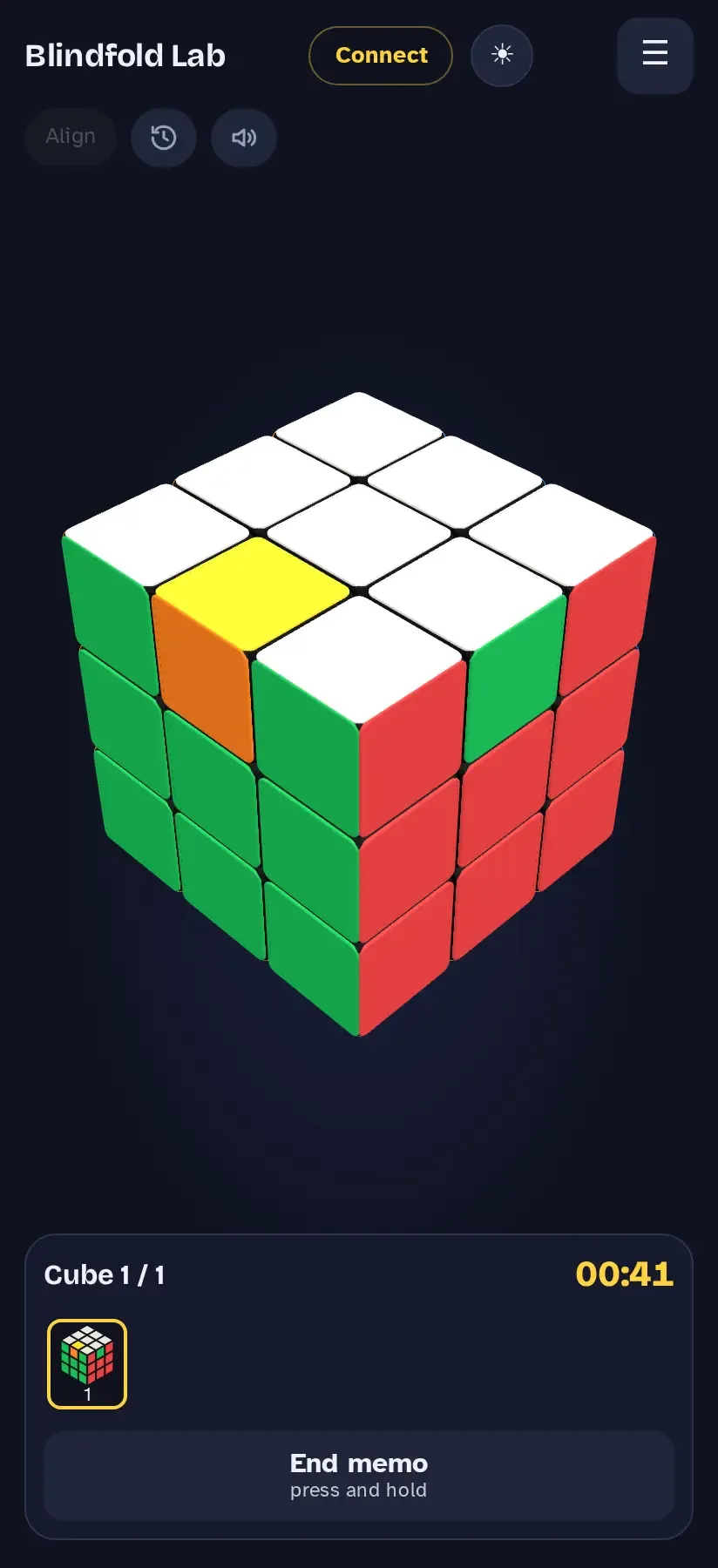
Scrambled cube during memo, clock running, button “End memo – press and hold”
Memo with clock
  1. Menu → Blind, choose the scramble type, tap Scramble cube.
  2. Swipe the box aside – the clock starts. (Keyboard: arrow left/right.)
  3. Memorise. Drag the cube to turn the view.
  4. Done? Press and hold End memo until it is full – a tap is not enough, so nothing ends by accident.

2Solve: turn or type letters

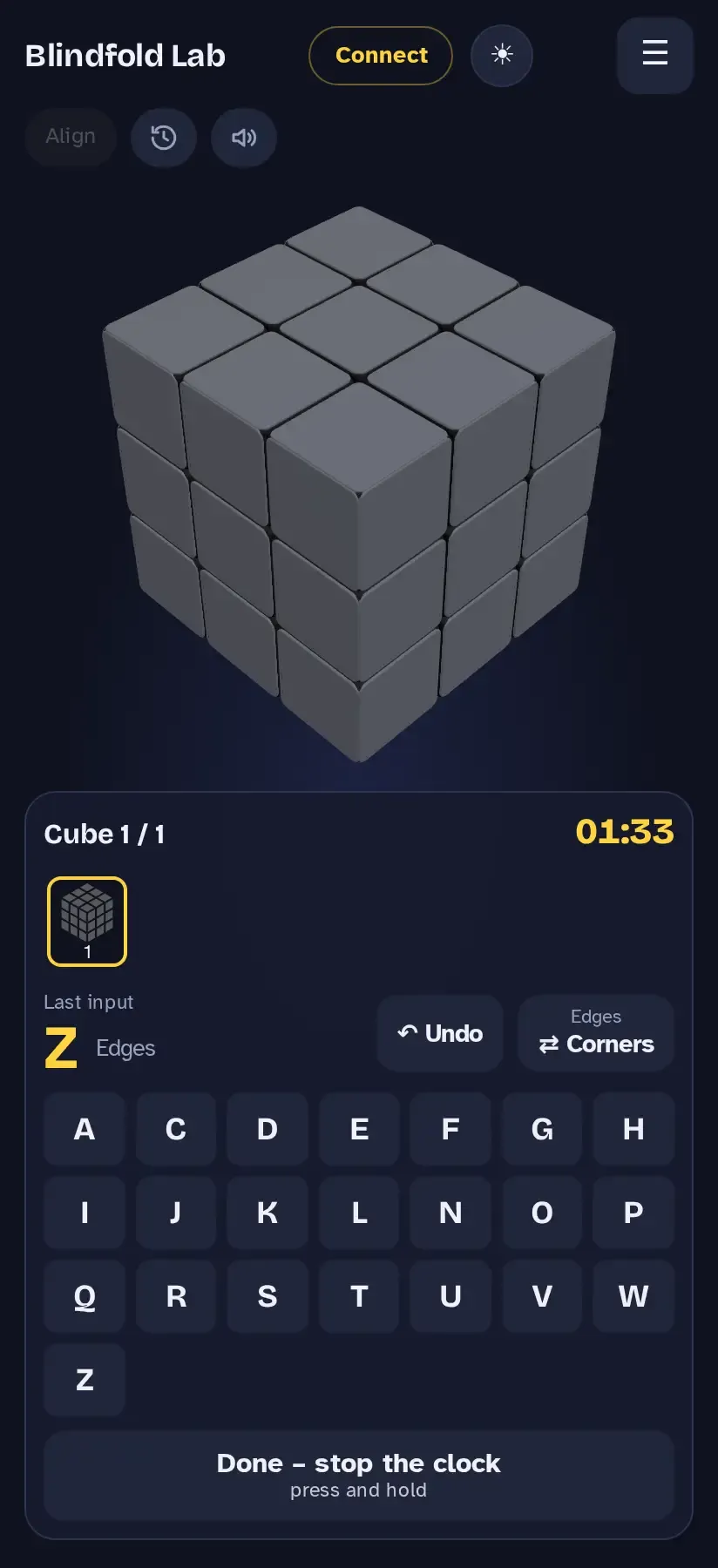
Grey cube with letter keyboard; last input shown large, buttons Undo and switch to the other piece type
Typing letters on the virtual cube
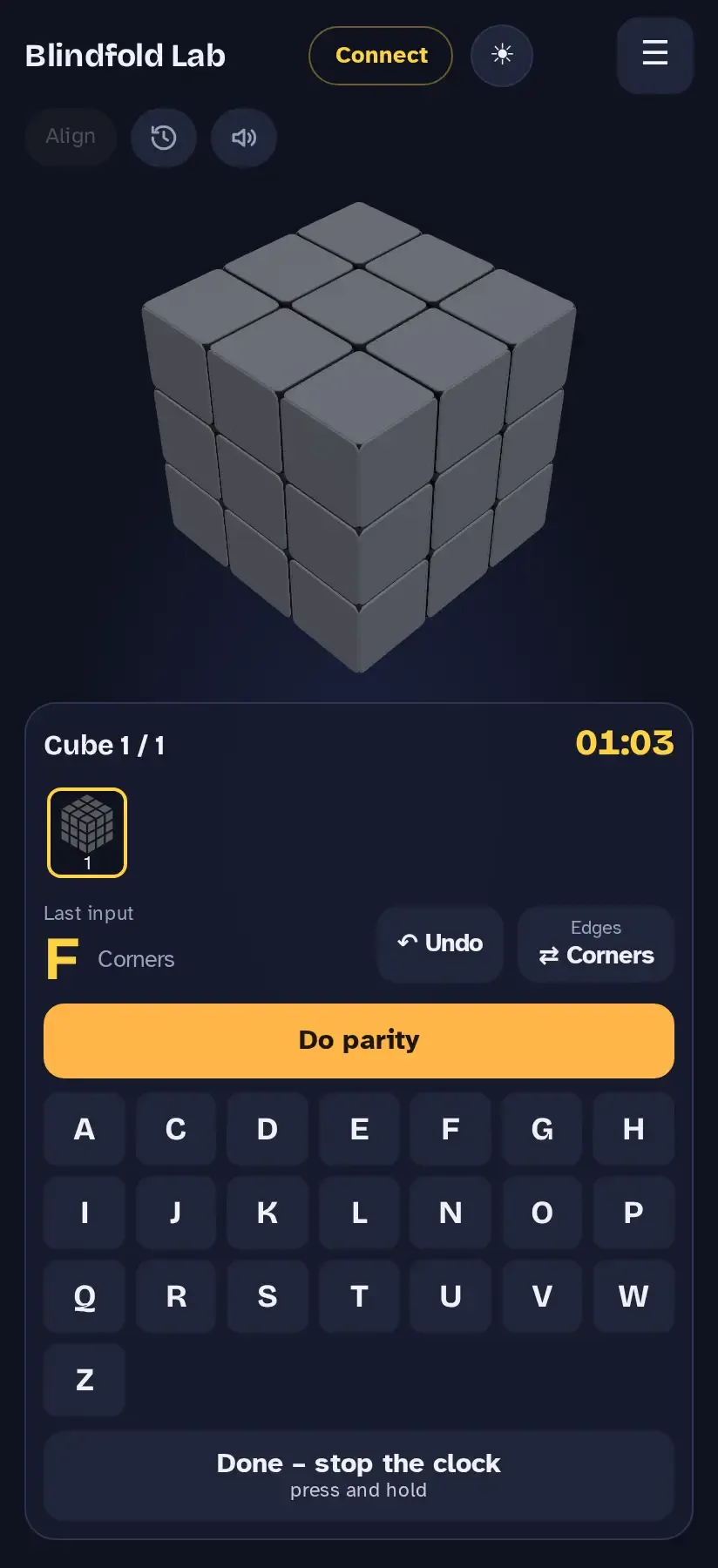
After switching to the other piece type the button “Do parity” appears above the letters
“Do parity” after switching

The cube is grey now. You have three ways to solve:

  • Smart cube: turn the real cube; D4 = done.
  • Virtual cube, turning: swipe across the cube to turn layers, or use the keyboard.
  • Virtual cube, typing letters: type the letters of your memo – the cube executes them with your method (setup, perm, undo).

When typing:

  • Only the last input can be undone.
  • ⇄ switches between corners and edges.
  • If parity is set to “Parity move” in the settings, the button Do parity appears right after switching to the second piece type – tap it first. With “Swap mentally” there is no extra button.

At the end press and hold Done – stop the clock.

3Result and analysis

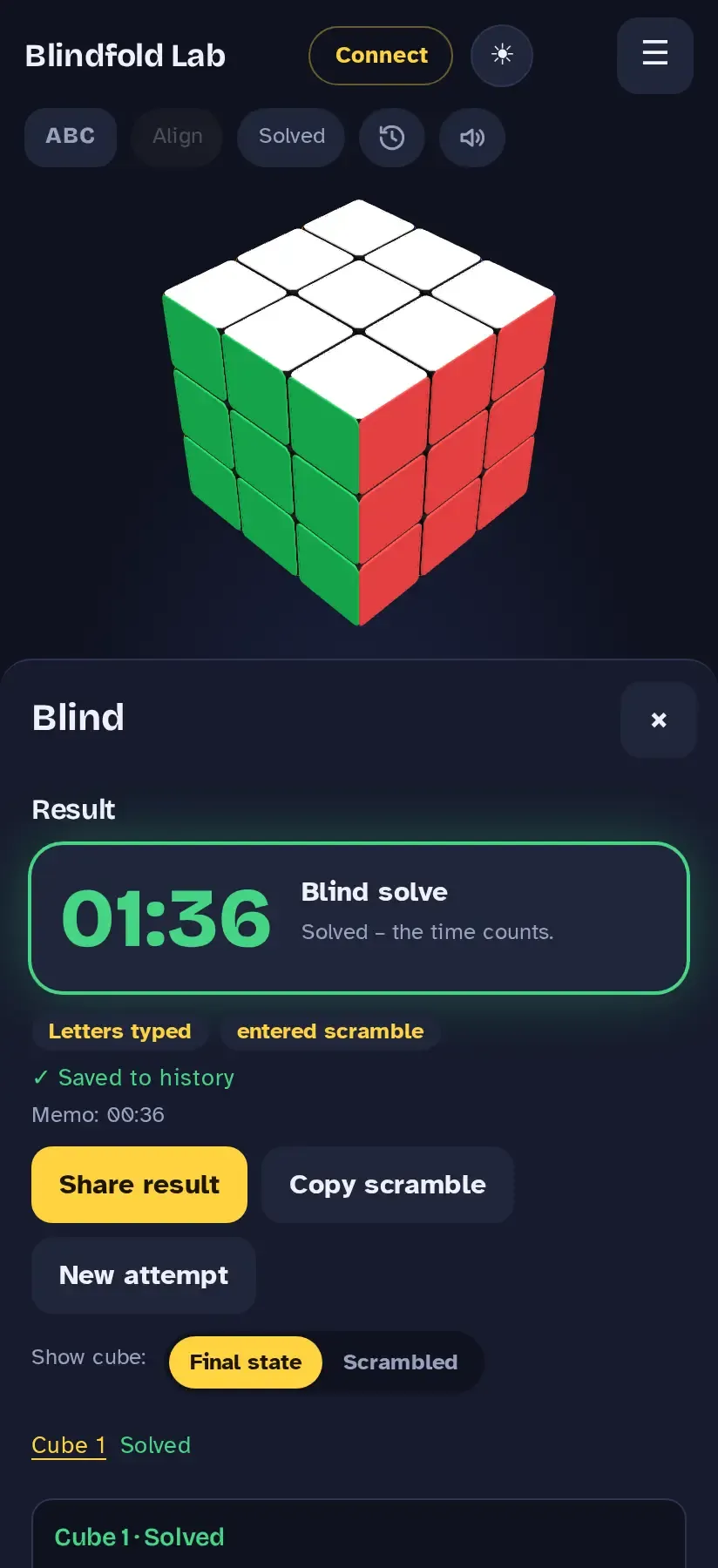
Result: time, “Solved – the time counts”, tags “Letters typed” and “entered scramble”, buttons Share result, Copy scramble, New attempt
Result with tags
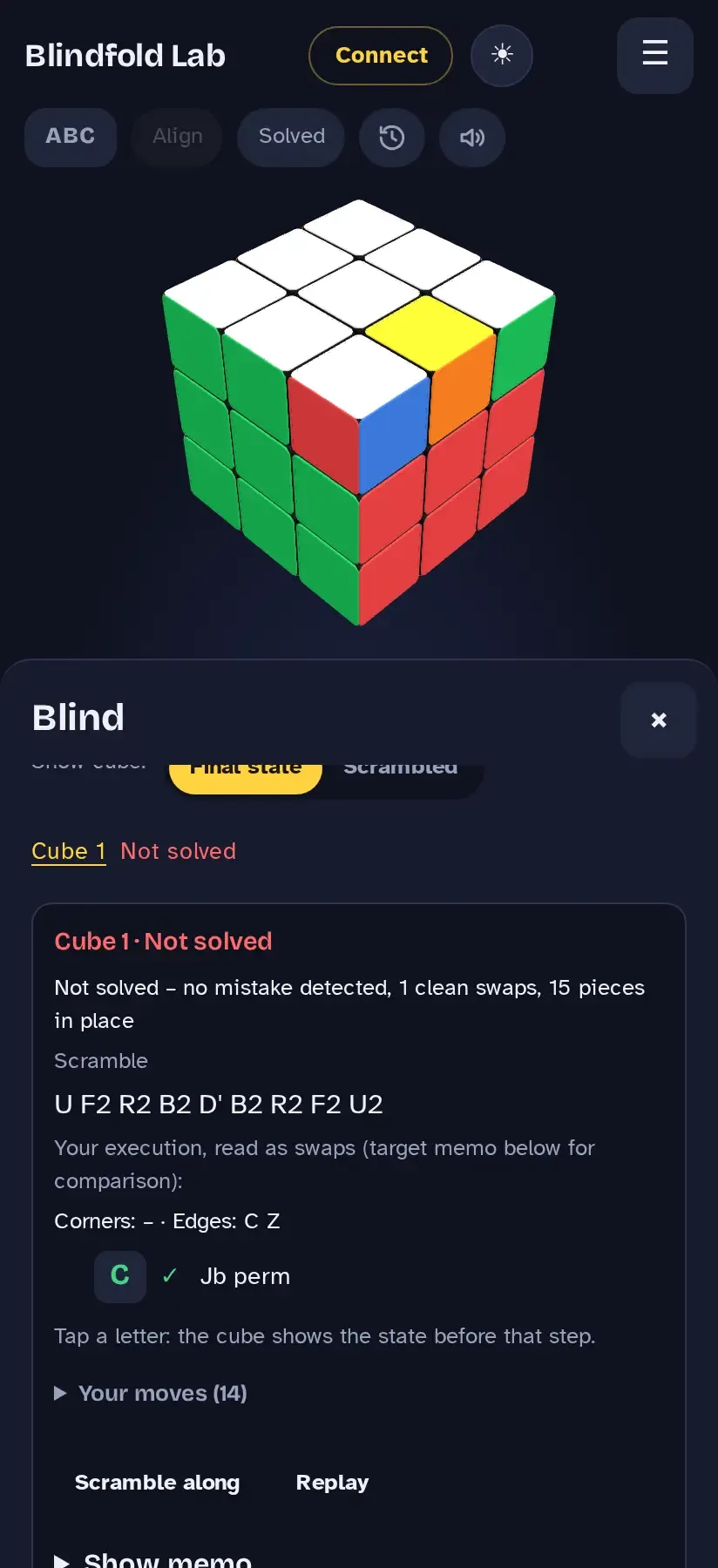
Analysis of an unsolved cube: scramble, your execution read as swaps with the target memo for comparison, buttons Scramble in training and Watch solve
Analysis of a DNF
  • The result shows time (or DNF), memo time and tags: Smart cube when you turned a connected smart cube, Letters typed when you typed on the virtual cube, plus the scramble type.
  • Per cube: the scramble, your execution read as swaps with the target memo below for comparison, and – if something went wrong – where: e.g. “Mistake: wrong edge at C – visible after move 14 (swap 1)”.
  • Watch solve steps through your solve move by move, Scramble in training takes the scramble into Training (to turn it on your real cube), Show memo reveals the correct memo.
  • Share result sends an image and a link. The link contains the whole solve – whoever opens it can step through it in the app or the browser, no account needed.
  • Share result creates an image and a text with the scrambles – to solve again or to send.
  • Enter your own scramble … takes a copied, shared or typed scramble as a new attempt, e.g. one line 1. R U F' …

4Multiblind

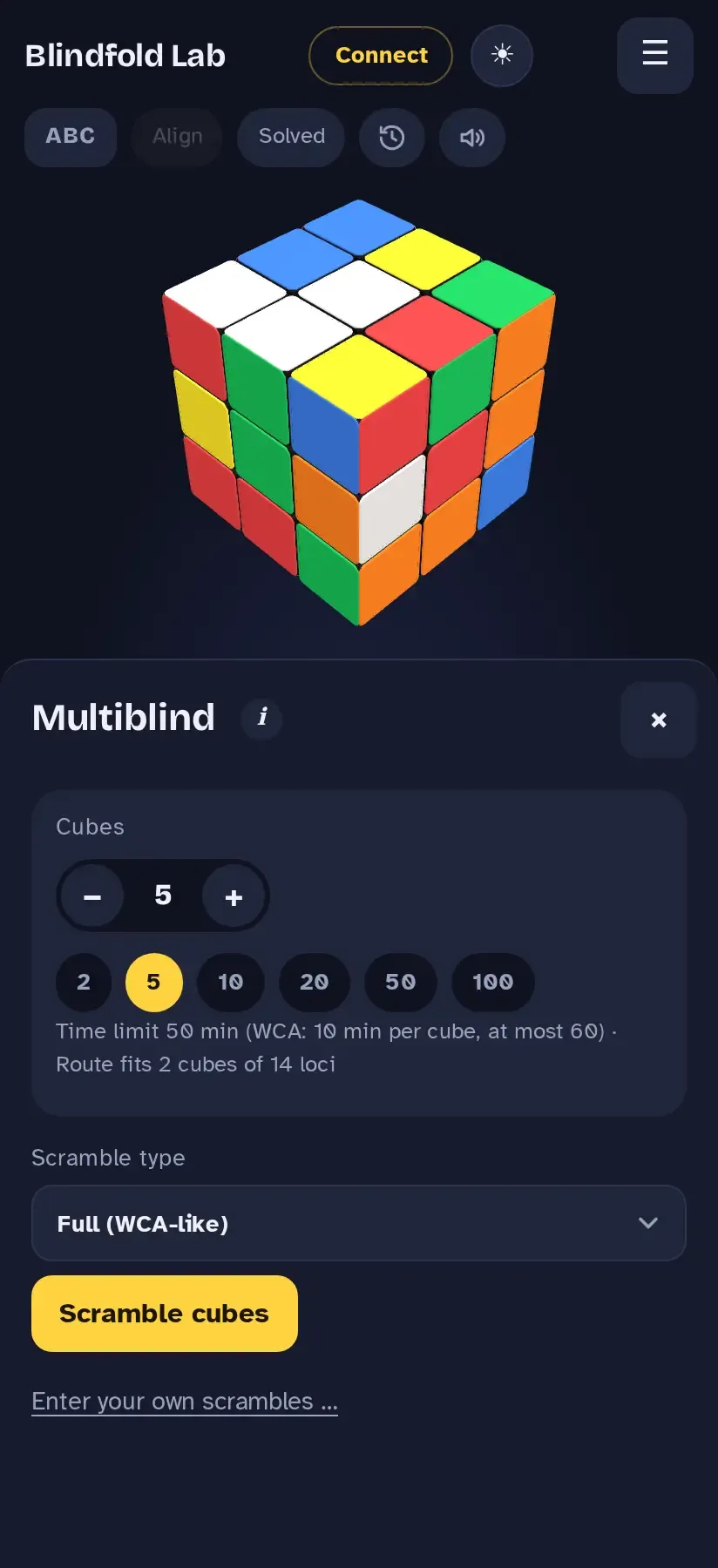
Multiblind panel: number of cubes 5, time limit 50 minutes, note on route capacity, scramble type and button Scramble cubes
Choose the number of cubes

Same flow with several cubes. Choose the number (2, 5, 10, 20, 50, 100 or any), scramble, uncover. During memo, switch cubes with the strip below or the arrows; the app remembers how you held each cube.

  • Time limit like the WCA: 10 minutes per cube, at most 60.
  • Points = solved − unsolved. DNF if fewer than 2 are solved or points are below 0.
  • The app shows how many cubes your route has room for (14 places per cube).
  • On a smart cube, D4 moves on to the next cube.

Route & images

For memo you turn letter pairs into images and place them along a memory route. Both areas train with swipe cards.

1Card rounds

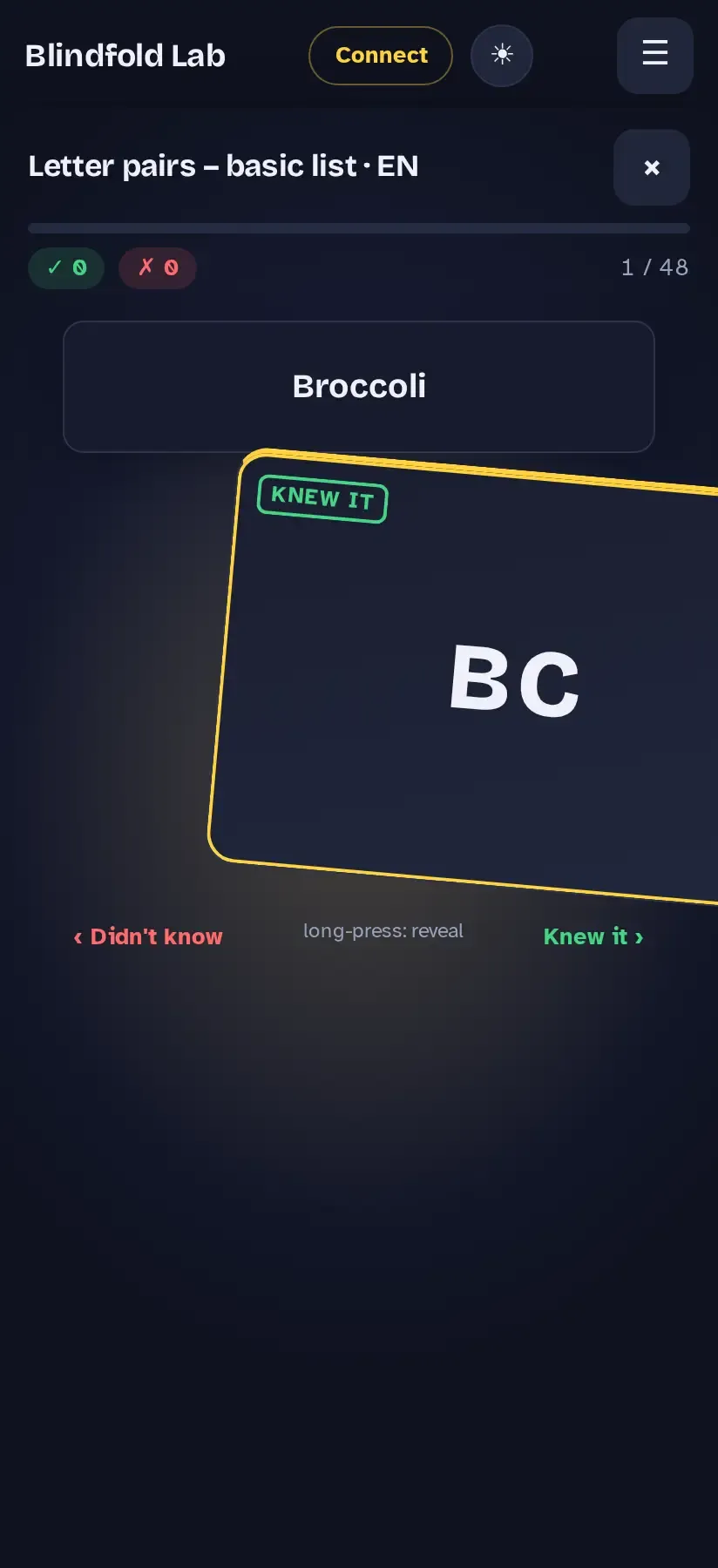
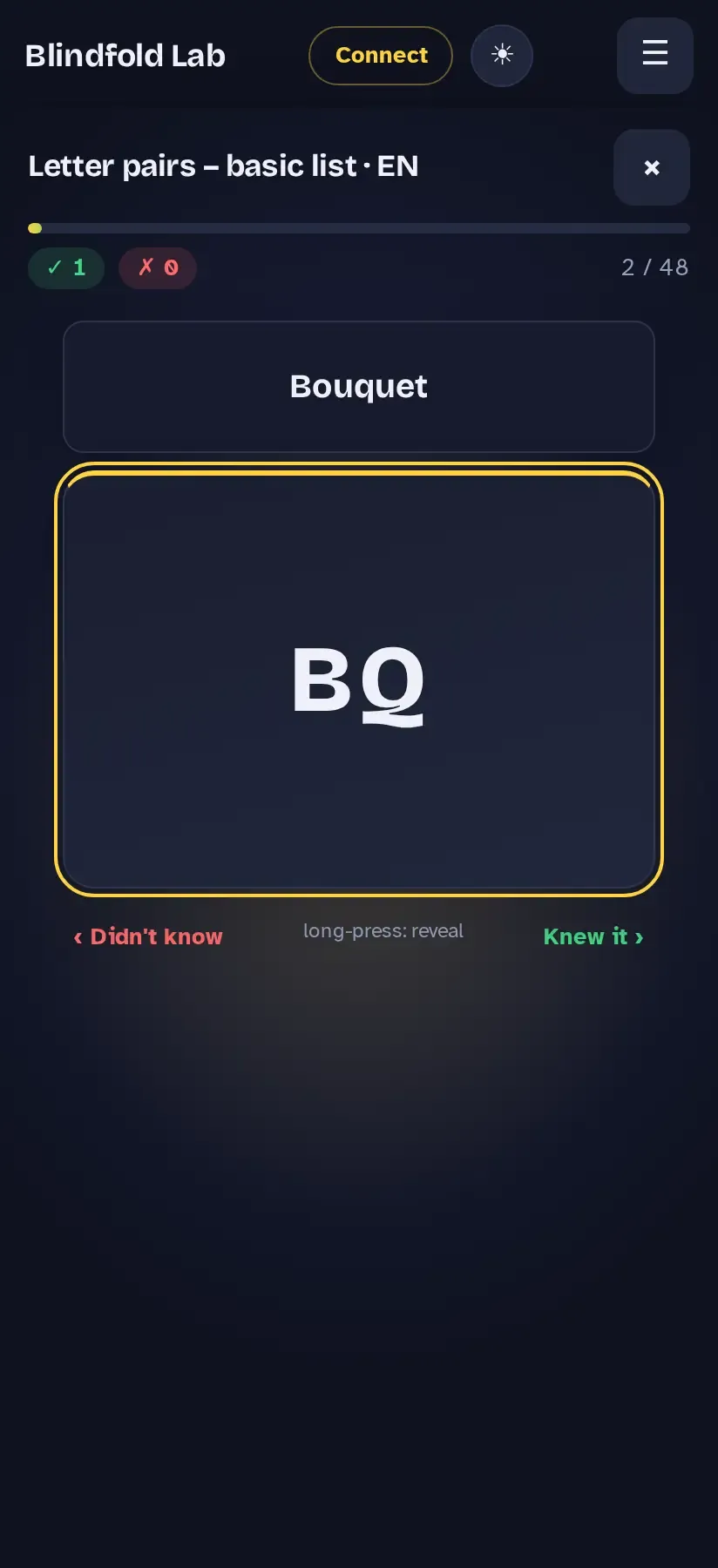
Flashcard with letter pair being swiped to the right, stamp “Knew it”, solution field above shows the word
Swipe right = known
Flashcard with letter pair; solution word in the fixed field above the card
Solution in the field above

Tap Start cards. A round covers the area behind it; the title bar stays usable.

  • Swipe right = known, swipe left = not known – also without revealing.
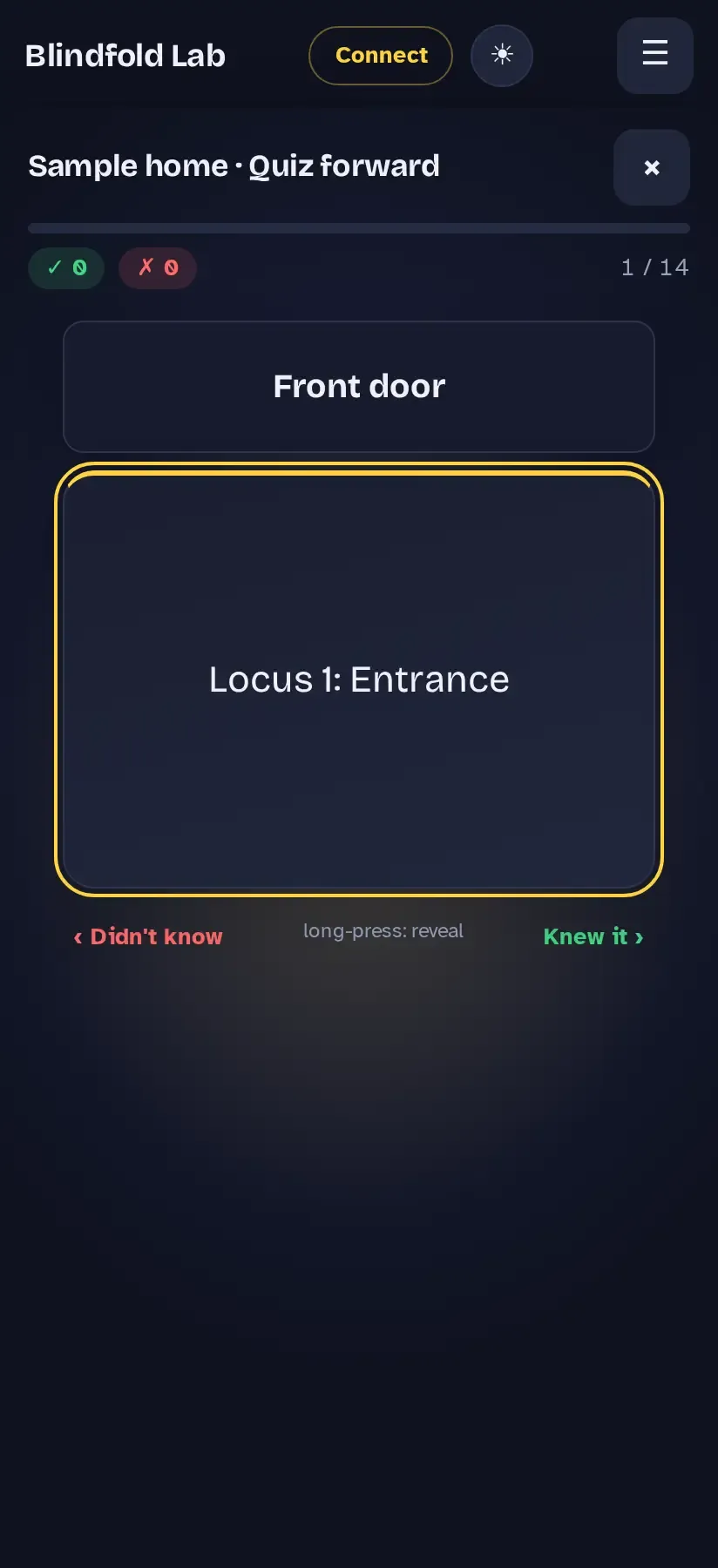
  • Long-press reveals the solution. It always appears in the same place: in the field above the card.
  • The small arrows below do the same by tapping. Keyboard: space reveals, arrow right/left answers.
  • ✕ or Escape ends the round.

2Images and the knowledge area

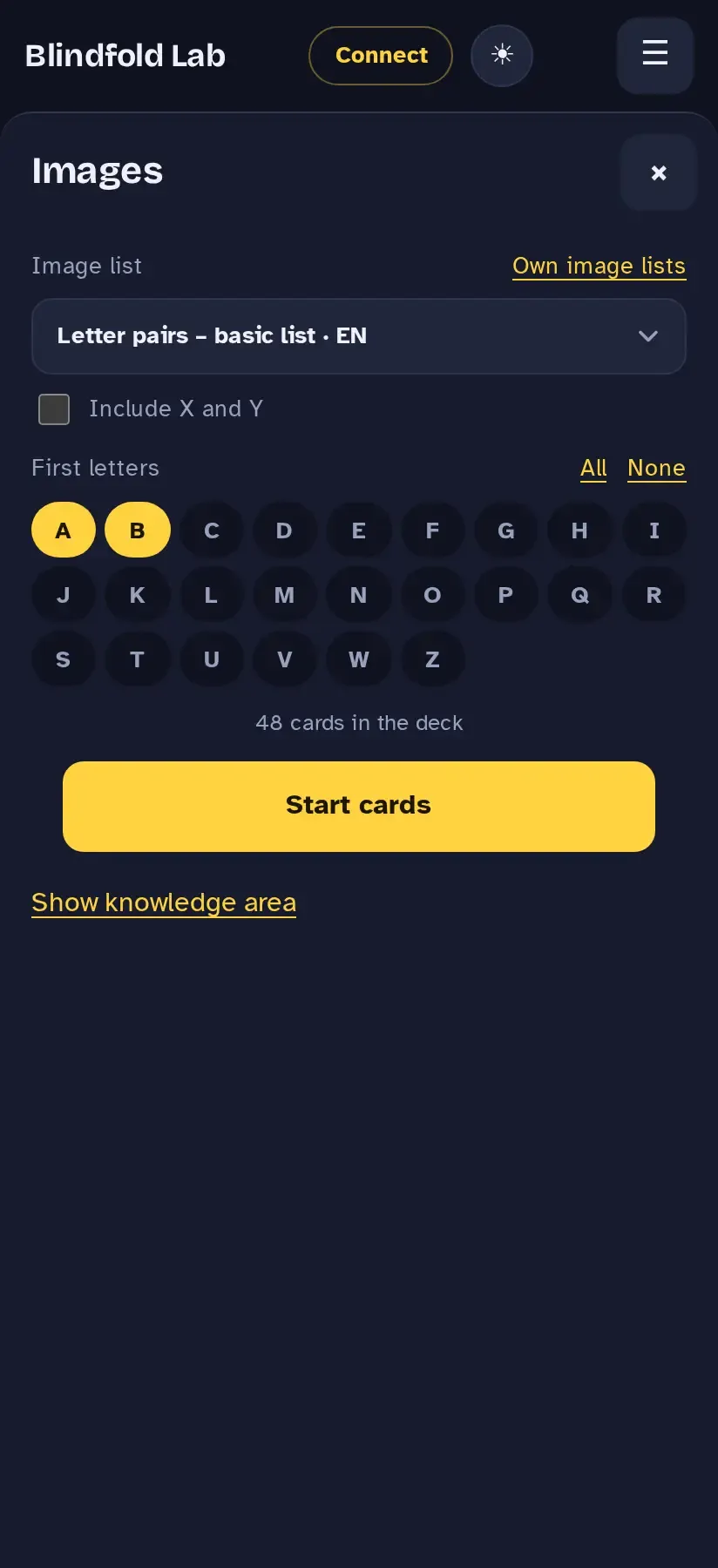
Images panel: image list selection, initial letters A and B selected, 48 cards in the deck, Start cards
Choose image list and initials
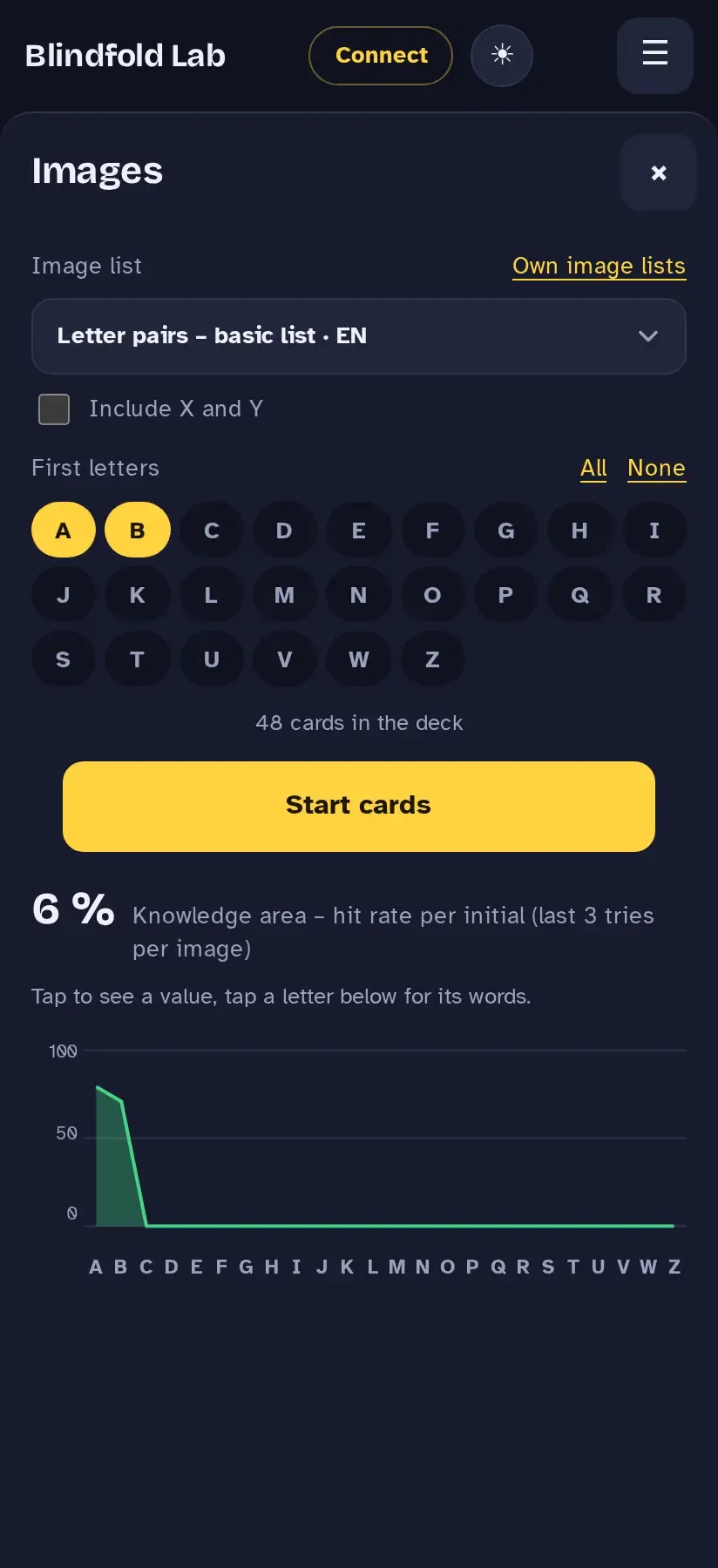
Knowledge area: hit rate per initial letter as an area chart
Knowledge area

Menu → Images. Choose a image list (letter pairs, single letters or digits), pick the initial letters you want to practise and optionally include X and Y.

At the end of a round you see how many you knew, the missed ones as chips, and Restart.

The knowledge area shows your hit rate per initial letter (last 3 tries per image). Tap to see a value; tap a letter below for its words. It appears at the end of every round, otherwise on request.

Own image lists: create your own images – with your own words and hints – or import them (export file, JSON, CSV or lines “key; word; hint”). This needs an account.

3Memory route

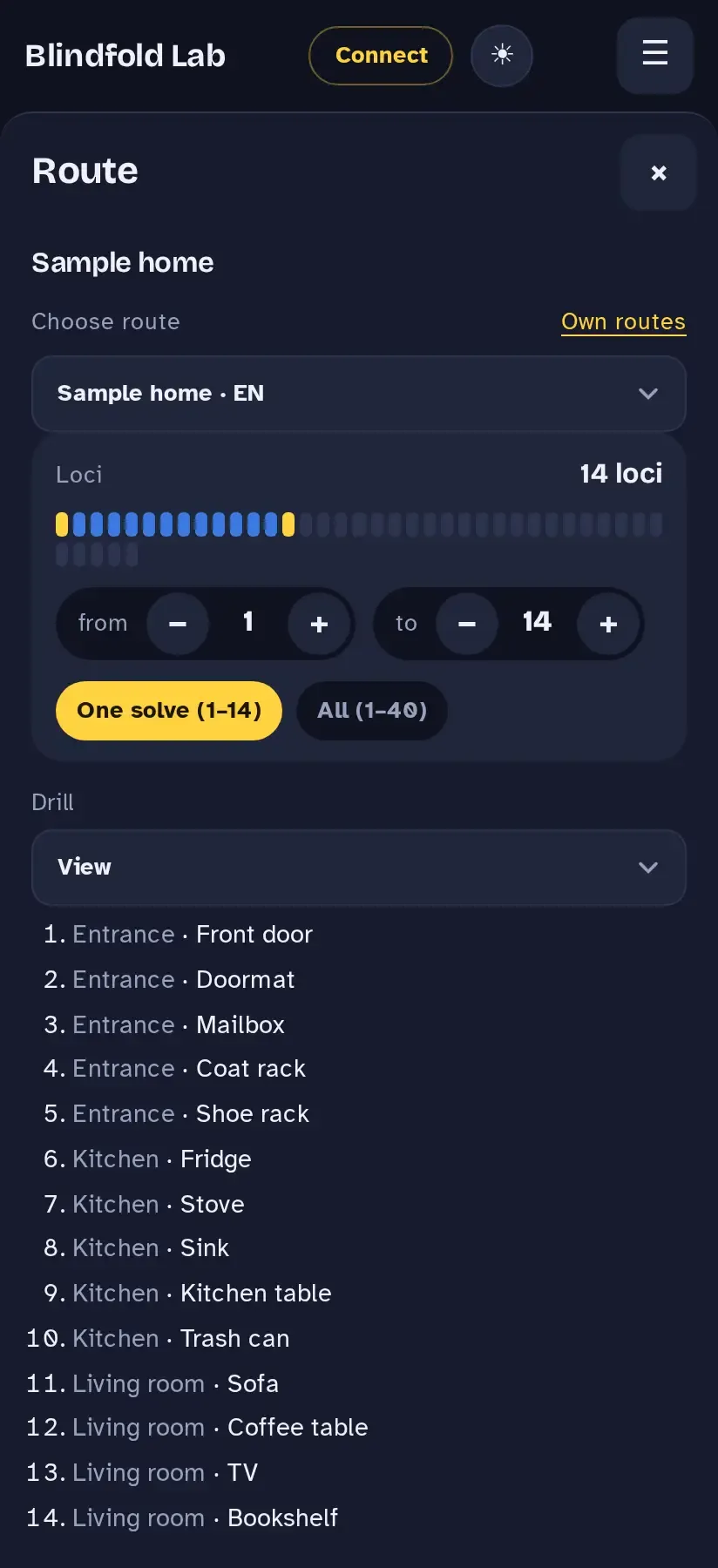
Route panel: sample home with 14 loci, presets One solve and All, drill View with the list of places
Route with 14 loci
Route card “Locus 1: Entrance” with the revealed object above the card
Quiz forward

A memory route is a path with fixed places, e.g. through your home. Menu → Route:

  • Choose a route and the range of loci (One solve is the loci a solve occupies at most with your memo settings – start loci, image type and objects per locus).
  • Drill: view, quiz forward, backward or random, or name the successor.
  • “What Old Pochmann needs” explains how many loci are enough in practice.

Own routes: build your own route; the order is the route. A list “area; object” can be pasted at once. Also needs an account.

Settings

Menu → Settings. Everything here applies to training, blind and multiblind.

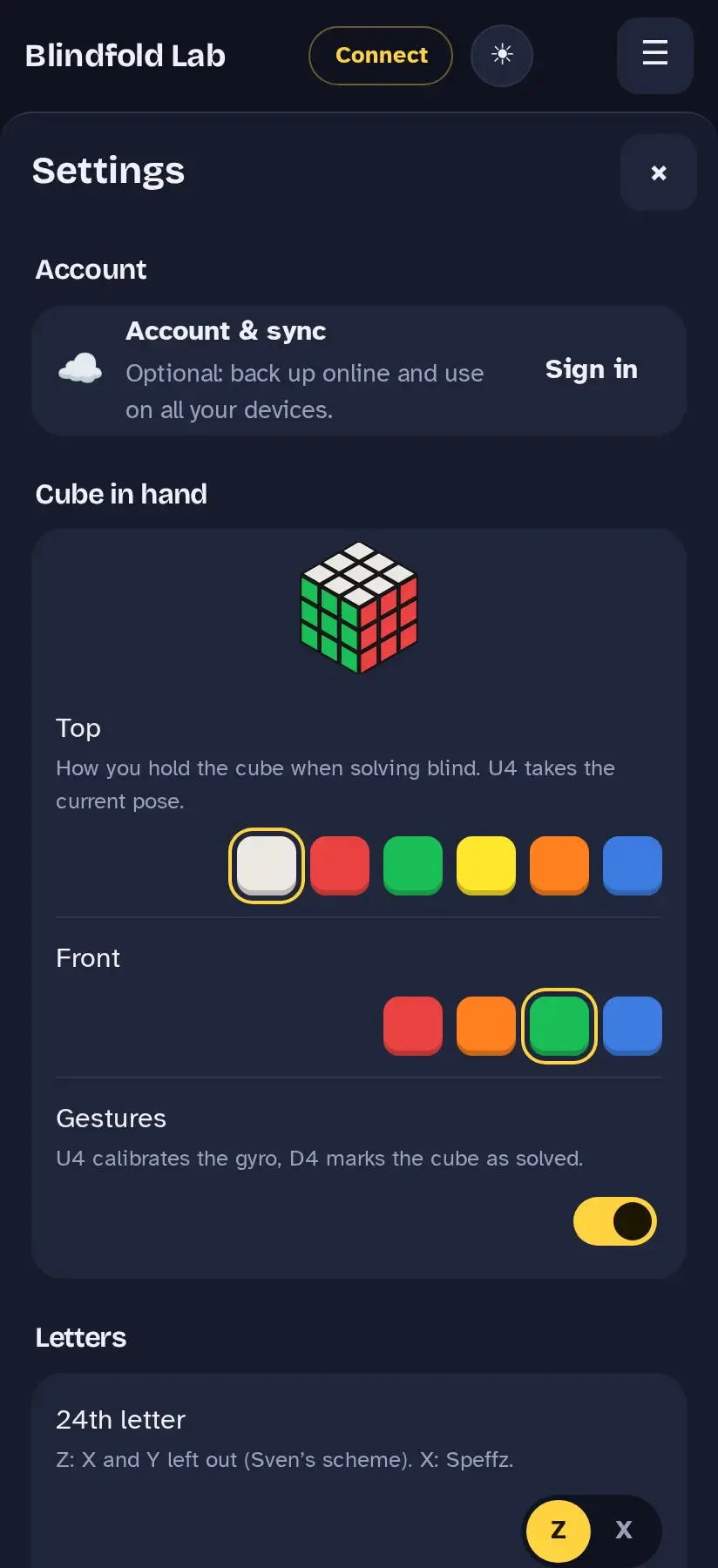
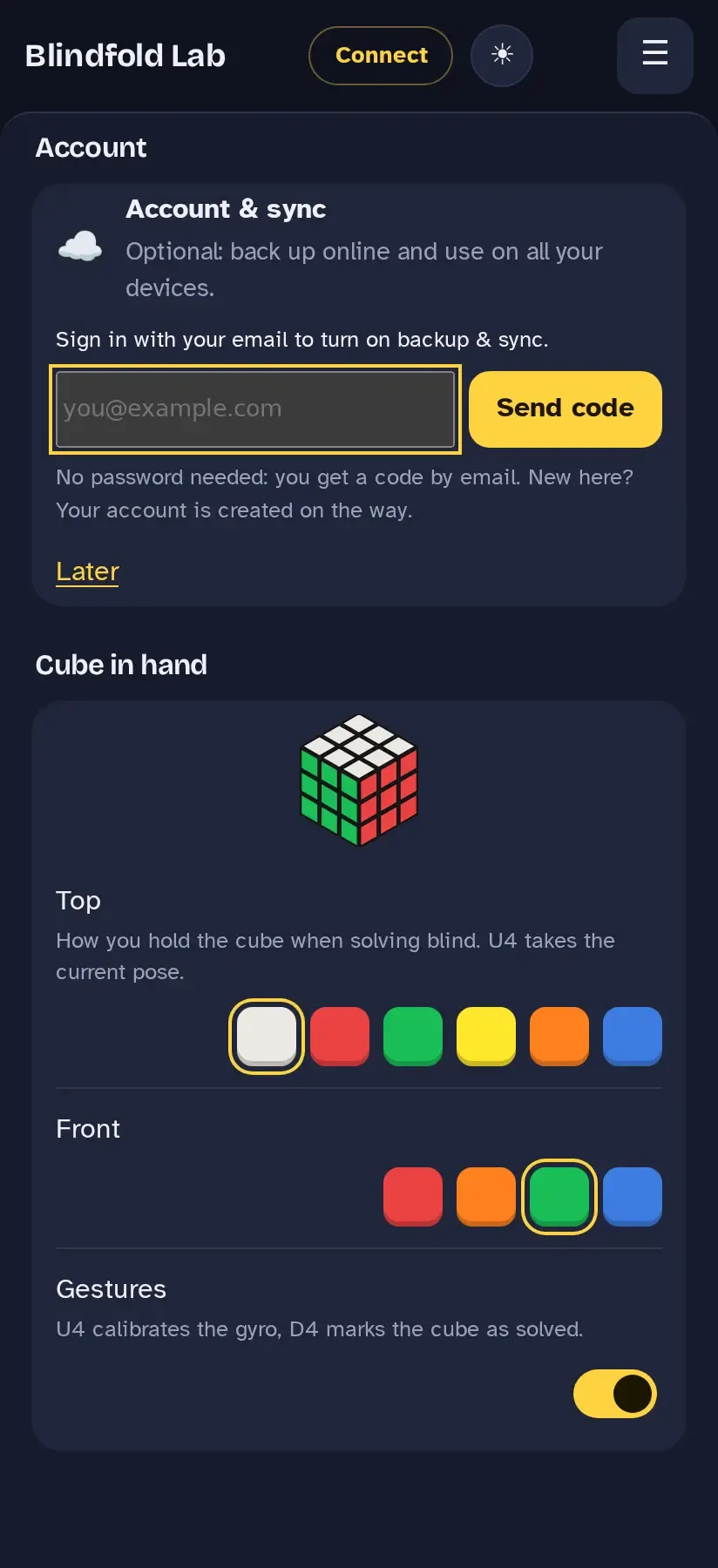
Settings: account, cube in hand with colour choice for top and front, gestures switch
Account and cube in hand
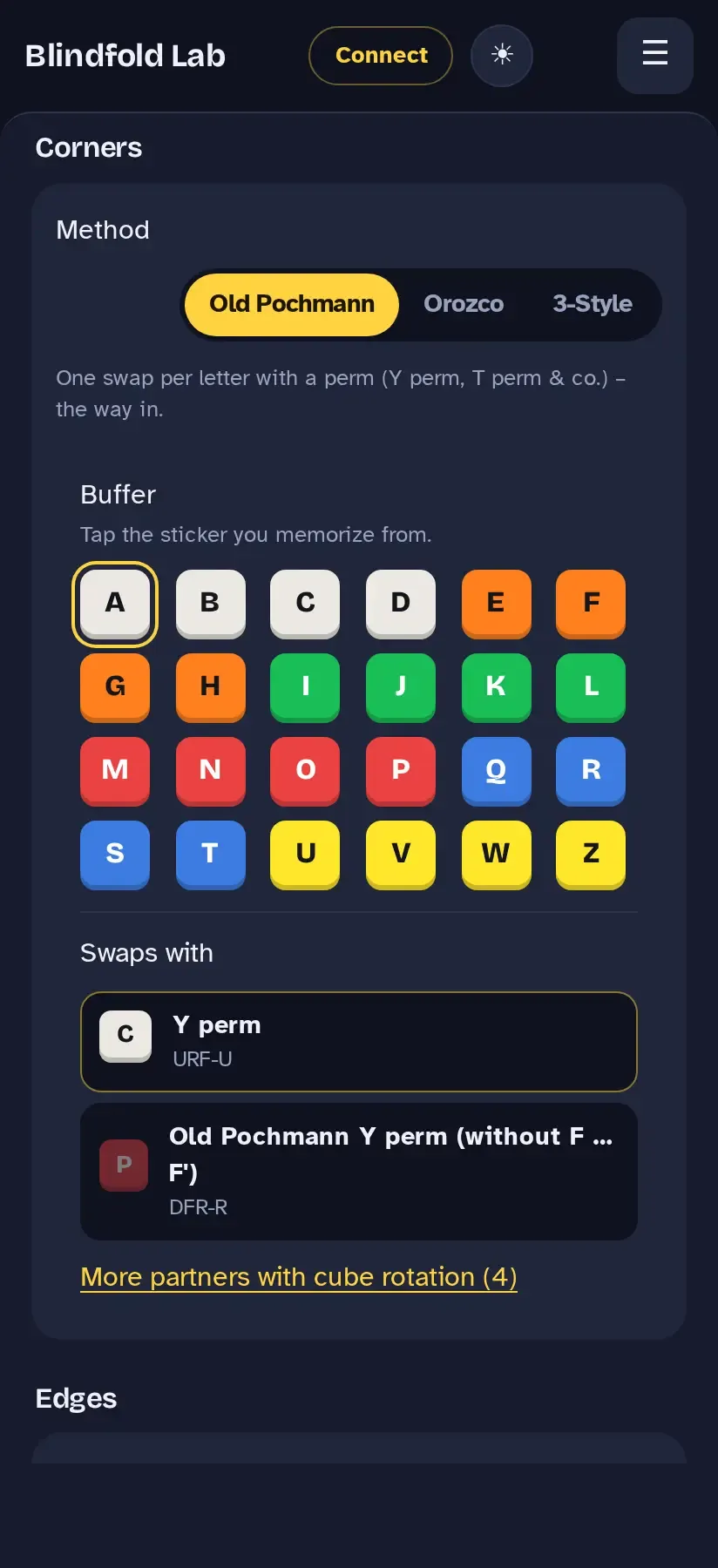
Old Pochmann corners: buffer as sticker grid, swap partners Y perm and others
Buffer and swap partners
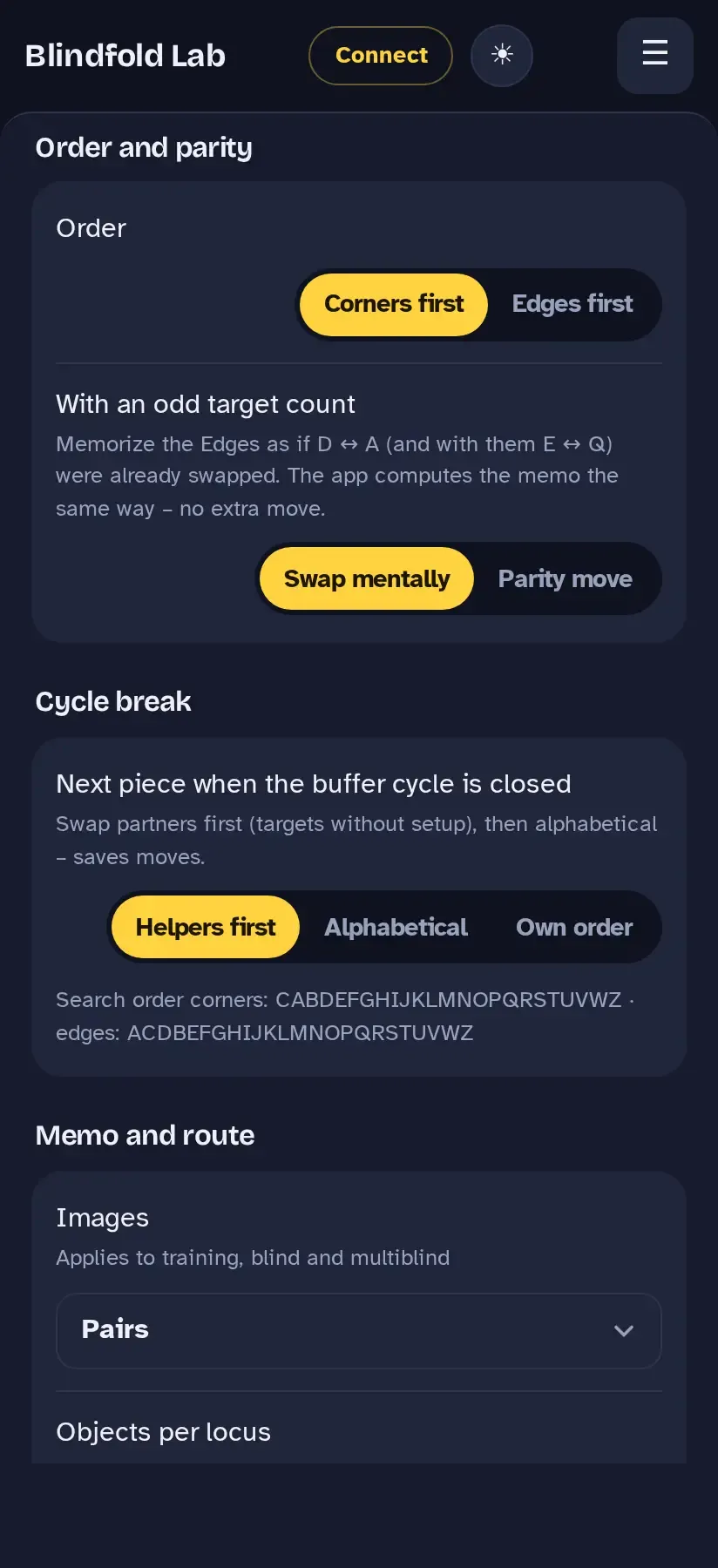
Order and parity, cycle break and memo and route
Parity and cycle break
Cube in handHow you hold the cube when solving blind: colour on top and in front. U4 takes the current pose. Plus the switch for the U4/D4 gestures.
Letters24th letter: Z (X and Y left out) or X (Speffz). “On the cube”: off, slot or target.
Old Pochmann: corners / edgesTap the buffer sticker you memorise from, and choose the swap partners (helpers), e.g. Y perm, T perm, J perms. More partners with cube rotation on request. For edges you also choose the method here: Old Pochmann or M2 (buffer DF, middle-slice special cases with the partner at every second position, M2 parity, edges first). For corners and edges also Orozco or 3-Style (commutators, buffers UFR/UF).
Order and parityCorners or edges first. With an odd target count: Swap mentally (memo the second type as if the pair were swapped – no extra move) or Parity move (an explicit algorithm after the first type).
Cycle breakWhich piece comes next when the buffer cycle is closed: helpers first, alphabetical or your own search order.
Memo and routeImages as pairs, single images or hybrid; objects per locus; which route and image lists; where edges and corners start on the route; which stations the memo list shows.

Further down: keys for the simulation, diagnostics, Show introduction again and the legal notice.

Account & sync

Optional. Without an account everything stays on this device – free and without signing in.

Account & sync: email field with button Send code; note: no password needed
Sign in with an email code

What do I get?

  • 🔒 Backed up online: nothing gets lost, even if the browser clears its data.
  • 🔄 Across devices: history and progress on phone and computer.
  • ✏️ Your own: your own image lists and memory routes.

Signing in (Settings → Account): enter your email, tap Send code, enter the code from the email, Sign in. No password needed – new users get their account created on the way. Please check your spam folder too.

If this device already has practice data, the app asks whether to add it to your account or replace it.

Signing out works for this device or for all devices. Delete account removes your own image lists, routes and the backup of history and learning progress for good; the practice data on the device stays.

History

Every completed run lands here automatically – blind, multiblind and training.

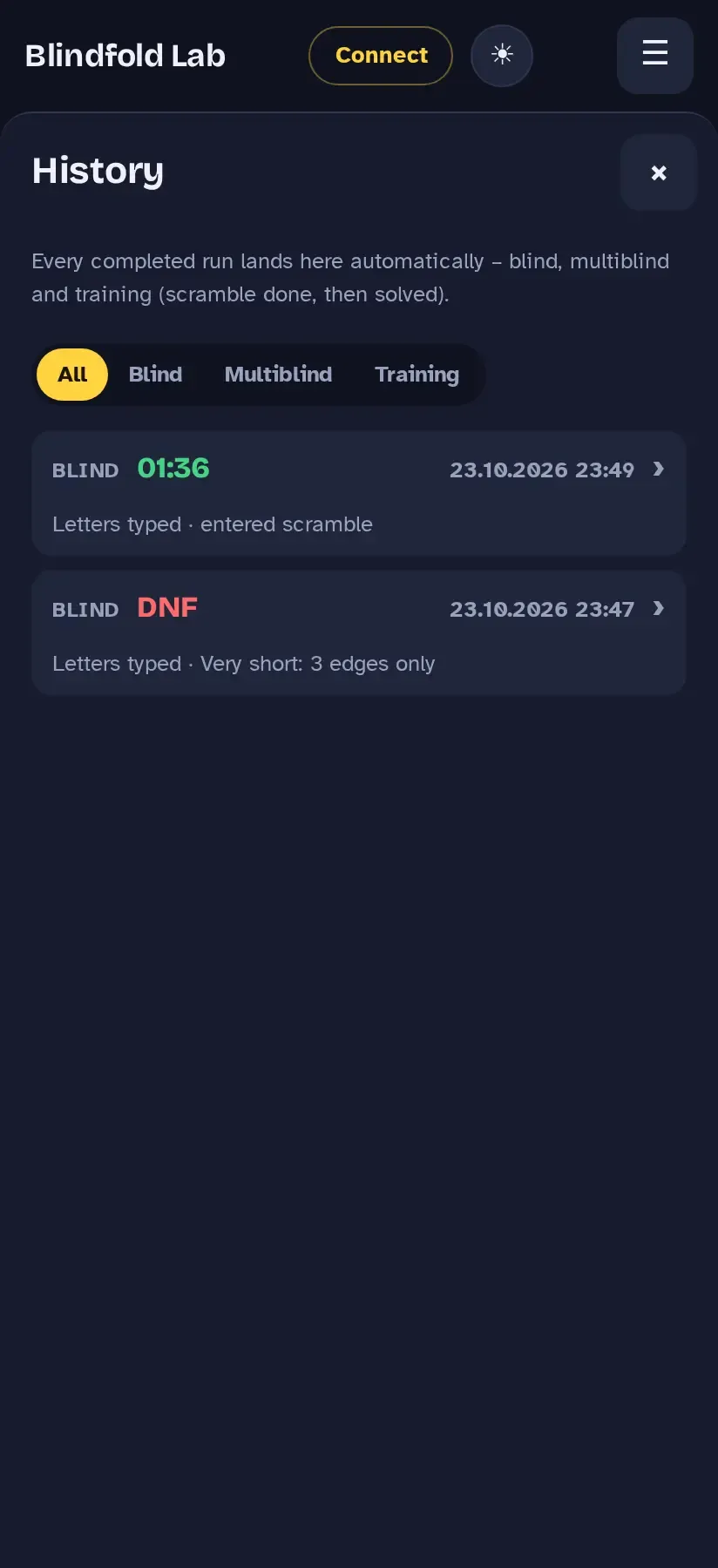
History with filters All, Blind, Multiblind, Training and two blind entries with time and DNF
History with filters

Open it via the menu or the clock at the top next to “Solved”. Filter by All, Blind, Multiblind or Training.

Each entry shows result, date and tags. Open it to see the analysis again, Solve again with the same scramble, or delete it.

Frequently asked questions

My cube is not found
  • Give the cube a turn – it only shows up when it is awake.
  • Use a browser with Web Bluetooth: Chrome or Edge; on iPhone/iPad Bluefy, or the app.
  • Blindfold Lab supports GAN smart cubes. Other devices are rejected with “This device is not supported”.
“Bluetooth is turned off” or “access was denied”

Turn on Bluetooth on your device. If access was denied, allow Bluetooth for the site in the browser’s site settings and reload the page.

The app asks for a MAC address

GAN cubes encrypt their data with their MAC address. If the browser cannot read it, enter it once (six hex pairs separated by colons). You can find it in the GAN app or with a Bluetooth scanner such as “nRF Connect”.

The cube on screen shows a different state than my smart cube
  • Outside an attempt: solve the real cube, then tap Solved or turn D4 (D four times).
  • Wrong orientation: hold the cube in your base orientation (Settings → Cube in hand) and tap Align or turn U4.
  • During a blind attempt this is intended: only the screen counts for the scramble colours.
The connection dropped during an attempt

The app warns you and reconnects on its own, then continues from the cube’s real state; the attempt is tagged “with gap”. If the connection does not come back before the end, it asks whether the cube was solved (self-judged).

Do I need a smart cube or an account?

No. Everything works on the virtual cube and without an account. An account only adds backup, sync across devices and your own image lists and routes.

What does “Letters typed” mean in a result?

You solved on the virtual cube by typing letters – the app performed the moves. Turned on a smart cube, the result is tagged “Smart cube”.

Can I undo a wrong letter?

Only the last input, as in a real blind solve. If an earlier letter was wrong, the analysis shows where the mistake became visible.